Your Google Business Profile is the panel that appears when someone searches for your business name, and the listing that shows up in Google Maps. For many local businesses it gets more views than the website itself. It is free, and a well-kept profile brings in calls, direction requests and website visits. Here is how to set it up properly.
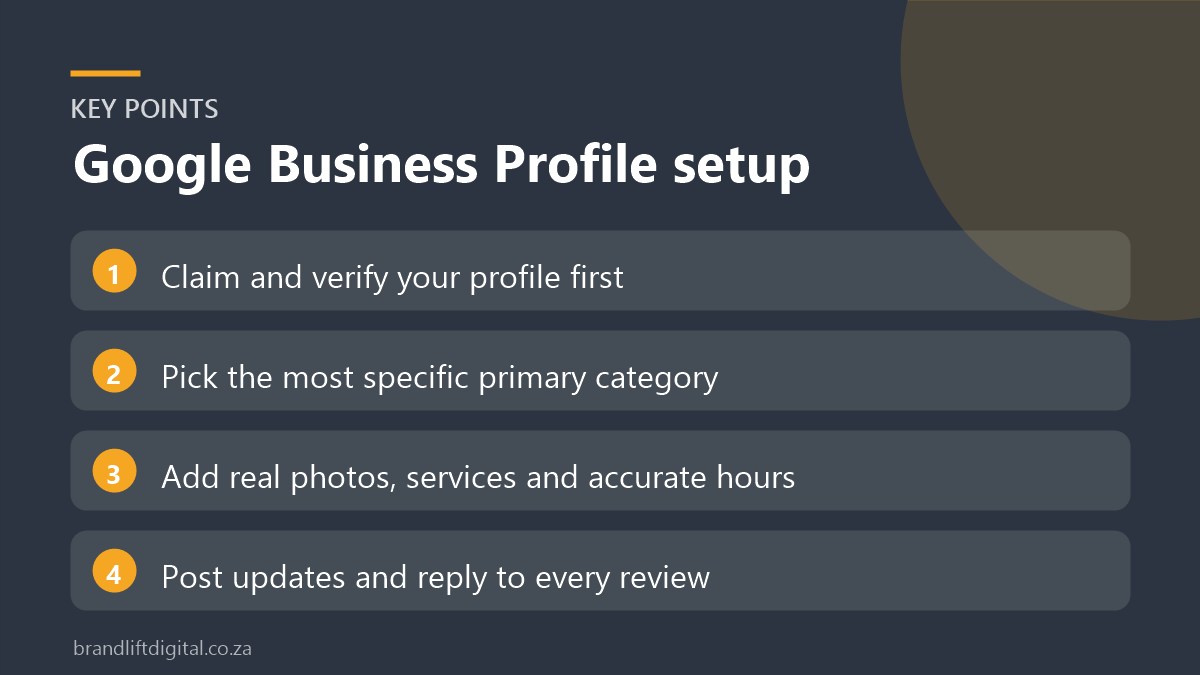
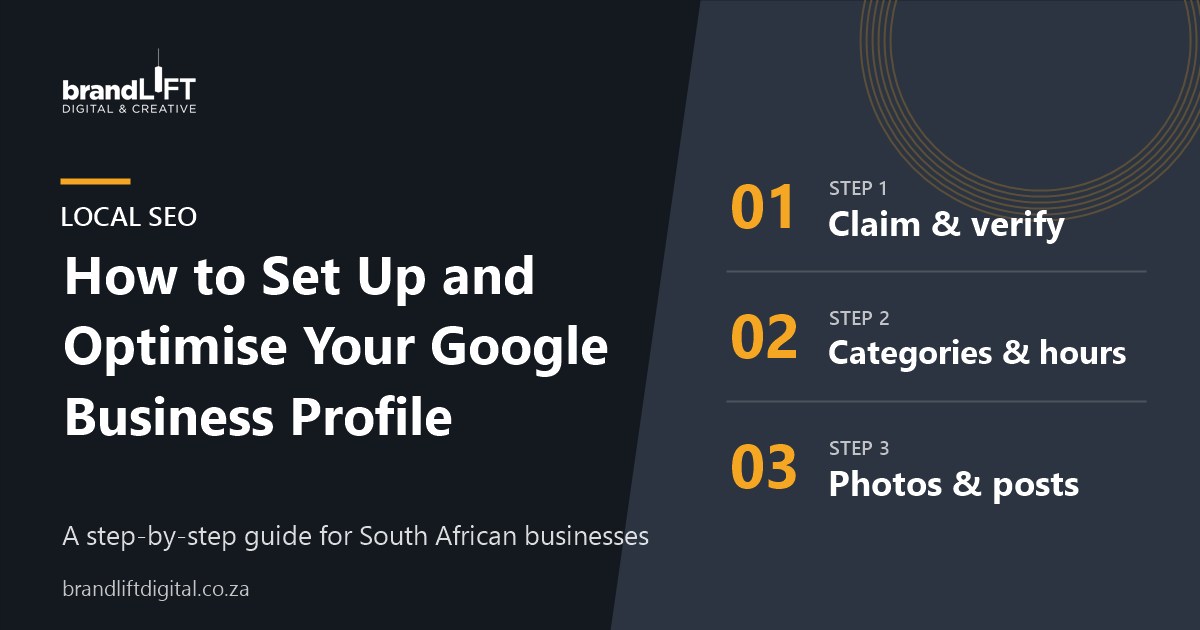
Step 1: Claim and verify your profile
Search for your business on Google Maps. If a listing already exists, choose the option to claim it. If not, add your business through Google Business Profile Manager. Google will then ask you to verify that you own the business. Depending on your business, this may be by phone, email, video or a postcard. You cannot edit most settings until verification is complete, so do this first.
Step 2: Get the basics right
- Business name: use your real business name only. Adding keywords or suburbs to the name breaks Google’s guidelines and can get the profile suspended.
- Primary category: choose the most specific category for your main service. Add secondary categories for other services.
- Address or service area: show your address if customers visit you. If you travel to customers, hide the address and list the suburbs or areas you serve.
- Phone number and website: use the same details as your website, exactly.
- Hours: add regular hours and update special hours for public holidays.
Step 3: Describe your business and services
Write a short, clear description of what you do, who you help and where you work. Then add your services or products. These help Google match your profile to more specific searches and help customers understand what you offer before they call.
Step 4: Add real photos
Upload your logo, a cover photo and real images of your premises, team and work. Avoid stock photos. Photos give people confidence before they contact you, and profiles with recent photos look active and cared for. Add new ones every month or two.
Step 5: Use Google posts
Posts let you share news, offers, events or recent projects directly on your profile. Keep them short, add a photo and include a link to the relevant page on your website. A post every week or two is enough.
Step 6: Build and manage reviews
Reviews are one of the biggest factors in local rankings and in whether people choose you. Copy your review link from the profile dashboard and send it to happy customers by WhatsApp or email. Reply to every review, positive or negative, politely and promptly.
Step 7: Track what is working
The performance section of your profile shows how many people viewed it, called you, asked for directions or clicked through to your website. Check it monthly. If calls drop, look at your reviews, photos and hours first.
Google Business Profile: frequently asked questions
Does a Google Business Profile cost anything?
No. Creating and managing the profile is free.
Do I still need a website if I have a profile?
Yes. Your profile gets people’s attention, but your website is where they compare you, read about your services and get in touch. A strong profile linking to a clear website works best. See our small business website design service if your site needs work.
What else helps me rank locally?
Your profile is one part of local SEO. Our local SEO checklist for Cape Town businesses covers the rest, from suburb pages to directory listings.
Want us to set it up for you?
Google Business Profile setup and management is part of our SEO services. We will set it up, keep it updated and report on the calls and visits it brings in.